01What Grok 4.5 Is and How It Works
Grok 4.5 is the latest and smartest AI model from SpaceX AI. It is a powerful tool for coding, building apps, generating images and videos, and handling knowledge work. In this episode, Julian Goldie shows you a free course on how to use it and get the most out of it.
If you already have a Twitter subscription, you can use Grok 4.5 for free with no extra cost. It can pull live news from Twitter, create images, and even produce videos. According to benchmarks shown in this episode, Grok 4.5 outperforms GPT 5.6 on design tasks and holds its own against models like Claude Opus 4.8.
02Three Ways to Access Grok 4.5
You have three main ways to use Grok 4.5, each for different needs. The first is Super Grok inside Twitter. You open it by clicking the Grok icon and can switch between Fast mode for quick answers and Expert mode for deeper thinking responses.
The second is Grok.com, where you sign in to use the full model including the CLI option. The third is Grok Build, a terminal-based tool that works like Claude Code and is best for coding locally.
- Super Grok: inside Twitter, great for real-time news and quick tasks.
- Grok.com: use it in a chat interface with file uploads and projects.
- Grok Build CLI: runs in your terminal, codes locally, and saves files to your computer.
03How to Set Up Grok 4.5 Fast
- Open Twitter and click the Grok icon to access Super Grok. No installation needed.
- Go to Grok.com and sign in with your Twitter account. Choose Fast or Expert mode.
- For Grok Build, copy the terminal command from Grok.com (like 'grok install'), paste it into your Mac terminal, and press Enter.
- Wait for the installation to finish. Then type 'grok' in the terminal to start the CLI.
- To use Hermes Agent with Grok 4.5, install Hermes by pasting its GitHub terminal command into a new terminal tab.
- After Hermes installs, type 'hermes model', select Grok OAuth, and choose Grok 4.5 from the list. No API key needed.
04Step-by-Step: Building a Website with Grok 4.5
In this episode, Julian builds a website for an SEO agency to show you how it works. He opens Grok.com, selects Expert mode, and types: 'Create a beautiful website for an SEO agency.' Grok suggests improvements like adding responsive design. He clicks save and the model starts writing HTML and CSS code.
At the same time, he uses Grok Build CLI with the same prompt. Grok Build creates the website locally on his computer. The output includes a preview, mobile version, and source code.
Julian recommends using Grok Build for coding because it saves files to your machine and makes previewing easy.
He then improves the site by pasting in the HTML from his own branding page. He tells Grok to use his brand colors and a specific call-to-action link. Grok edits the code, and after refreshing, the site looks personalized.
05Results, Tests, and Comparisons from the Episode
Julian tested Grok 4.5 on 50 different projects using GoldieBench. The results show Grok 4.5 outperforms GPT 5.6 on design benchmarks and browser code tasks. Compared to Claude Opus 4.8, Grok 4.5's outputs are very similar, though Julian still considers Claude slightly better overall.
However, for 80% of tasks, Grok 4.5 is more than enough.
A unique advantage is that Grok can generate images and videos, which Claude cannot. In the video creation test, Grok Imagine turned a 2D book image into a 3D animated video in seconds. The video is limited to 6 or 10 seconds, but the quality is strong.
Julian also shows that Grok 4.5 can pull live Twitter news, a feature no other AI has.
06Tips, Limits, and Mistakes to Avoid
One big tip Julian gives is to always do a quality control review on everything Grok builds. For example, the test website had placeholder testimonials and missing images. You should replace those with real content.
Also, when you see a mistake, tell Grok to save the fix as a skill so it learns for next time.
A common mistake is not using multiple tabs or terminal windows. Grok can take time to respond, so working on two projects at once saves you time. Another limit is the video length: you can only create 6- or 10-second clips.
For longer videos, use a different tool. Finally, only install skills from trusted sources like official GitHub repos to avoid problems.
07Who Grok 4.5 Is For and Why It Matters
Grok 4.5 is for anyone who already has a Twitter subscription and wants a powerful AI without paying extra. It is great for coders building websites, apps, or games. Content creators can use it to generate social media posts, images, and short videos.
Business owners can automate workflows like sending emails and creating documents using connectors.
Julian emphasizes that models will keep getting better, but the systems you build around them matter more. By using skills, connectors, and a memory system like Obsidian, you can make Grok remember your brand, goals, and projects. This way, even when a new model comes out, your workflows keep working smoothly.
08How to Build a Custom Dashboard with Grok Build CLI
Julian builds a trending news dashboard to show a real-world use case. He types in Grok Build: 'Create a custom dashboard that pulls the latest news from Twitter using Grok 4.5 CLI.' The AI creates a tool that shows tweets, links, and categories like AI or automation. He then improves it by asking for a filter by views and a nicer UI.
To share this dashboard with the world, he uses Netlify. He creates a personal access token on Netlify, goes back to Grok Build, and says: 'Here is my Netlify token, host this website and give me a domain.' Grok does it automatically. This shows you can build a mini SaaS tool and launch it in minutes.
He also shows how to connect any third-party tool using MCP servers. For example, you can link Grok to NA10 by finding its MCP and adding it to the CLI.
09Building Your Agent Operating System with Grok 4.5
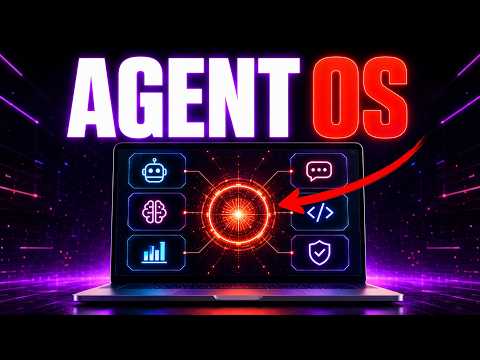
The final part of the episode shows how to create an agent operating system that links Grok, Hermes Agent, and all your tools in one place. Julian demonstrates a mission control dashboard where you can switch between AI models, view your projects, and publish content to WordPress with one click.
The key is a shared memory system using Obsidian. Obsidian is a free app where you store all your knowledge: your brand voice, goals, client info, and past work. You tell Grok Build: 'Use my Obsidian folder as your memory, and update it after every session.' This way, every AI agent you use can access the same brain.
Julian says this is important because models change fast, but your systems stay the same and only improve.
To get started, install Obsidian, create a folder for memories, and ask Grok or ChatGPT to write down everything it knows about you. Copy that into Obsidian. Then connect it to Grok Build with a simple prompt.