01What Is Hermes Agent HUD UI and How It Works
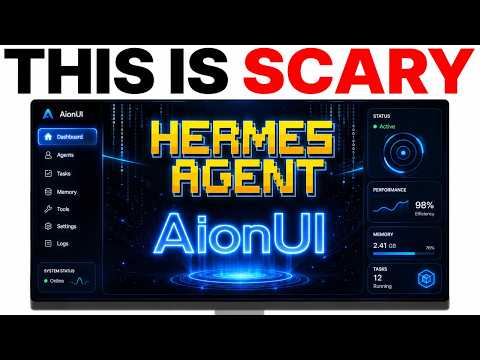
Hermes Agent HUD UI is a free, open-source web dashboard that gives you a live view of all your Hermes agents running in your browser. Instead of managing agents in the terminal—where you can't see what they do, chat with them properly, or manage tasks—this UI puts everything on one clean screen.
It works by connecting to your local Hermes installation through a plugin. Once set up, the dashboard runs in your browser and displays real-time data about every agent: their status, chat history, scheduled tasks, and health diagnostics. You can swap AI models, check which API keys are broken, and even change the language of the interface.
02Main Features of Hermes HUD UI
- Live agent dashboard: See all 25+ live agents at a glance, including Claude agents, Codex agents, and others.
- Built-in chat: Talk to your agents directly in the browser instead of using the terminal.
- Scheduled tasks: Create tasks with a name, prompt, and interval (e.g., every hour or daily).
- Health section: Check agent diagnostics and see which API keys or gateways are broken.
- Model switcher: Change the default AI model (e.g., GPT 5.4) and view all available gateways.
- Plugin manager: Manage all installed plugins from the dashboard.
You can also view sessions, projects, and environment configs. The dashboard is large and includes many menus, but the most useful parts are the chat, agent list, and health check.
03How to Set Up Hermes HUD UI
- Open your terminal where Hermes is installed.
- Paste the installation command from the Hermes HUD GitHub page into the terminal and press Enter. Alternatively, in the Hermes chat, type: "Install this plugin and sync it with Hermes."
- Wait for the plugin to install. The process takes about two to three minutes.
- If you also use Hermes Workspace, you can choose to sync the HUD UI with it. Go to the Hermes Workspace GitHub, select "switch on Hermes Workspace plus sync with it," and approve the permissions in the Hermes chat.
- Once installed, the dashboard will be running locally. Open it in your browser to see the live interface.
That's it. The setup is quick and requires no advanced configuration.
04How to Use the Hermes HUD Dashboard
After setup, you land on the main dashboard. Start by using the chat section on the left: click "start a new session" and type a message like "Are you working?" The agent responds in the chat. Note that the UI shows a section before the actual message, which can be a bit confusing at first.
Go to the scheduled tasks section to create new tasks. Enter a name, the prompt, and the interval (the schedule). Then check the agent section to see a list of all live agents—you will see 25 agents total, including Claude agents and Codex agents.
Use the health section to diagnose problems: it shows broken API keys and gateways. For example, you might see that your 11labs API key is invalid. Fix those keys so the corresponding models work.
Finally, use the model switcher to change your default model. Currently, the default is GPT 5.4, but you can switch to any model shown in the gateways list.
05Comparison With Hermes Workspace
In the episode, Julian tested Hermes HUD UI side by side with Hermes Workspace, another free web UI for Hermes. He noted that Hermes Workspace has a cleaner and more polished interface. It also includes a Swarms feature, which Hermes HUD UI does not have.
However, Hermes HUD UI offers a live health monitor and a direct chat that the default Hermes dashboard lacks. The default dashboard has no chat at all, so for chatting with agents, the HUD UI is a big improvement. Julian said that for ease of use, Hermes Workspace wins, but he still finds Hermes HUD UI powerful and worth checking out.
Both tools are free and open source, so you can even create your own version based on them.
06Tips, Limits and Mistakes to Avoid
- Don't ignore the health section: If your agents aren't working, check here first. Broken API keys and gateways are common problems.
- The chat layout can be confusing: When you send a message, a section appears before the agent's reply. Expect this and don't think the agent failed.
- Use only what you need: The dashboard has many menus (terminal commands, patterns, corrections) that you may never use. Focus on the chat, agent list, health, and scheduled tasks.
- Syncing with Hermes Workspace is optional: You can run Hermes HUD alone. Only sync if you already use Hermes Workspace and want to combine them.
- Setup takes 2-3 minutes, not seconds. Be patient during the plugin installation.
Remember that the HUD UI is still new, so some sections may be rough around the edges.
07Who It Is For and Why It Matters
Hermes Agent HUD UI is for anyone who uses Hermes agents in the terminal and wants a better way to see and control them. If you run multiple agents—Claude agents, Codex agents, or others—the live dashboard makes it easy to spot which ones are healthy and which have broken connections.
It matters because managing agents in the terminal is difficult: you can't chat with them easily, you can't see their status, and you can't schedule tasks. This free UI solves those problems without costing anything. Whether you are a developer, an AI automation enthusiast, or a business owner trying to automate workflows, this tool gives you a mission-control view of your agents.
It also serves as a solid alternative to Hermes Workspace if you prefer a different layout or want more diagnostic details.