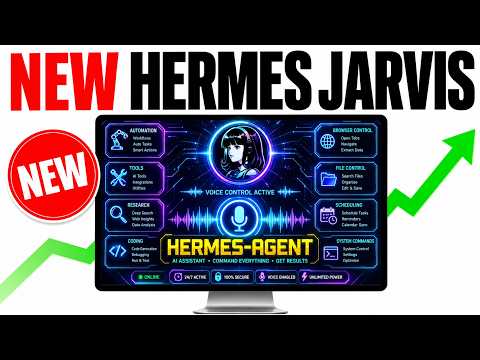
01What is Hermes Desktop Ollama?
Hermes Desktop Ollama is a setup that connects the Hermes desktop app with Ollama, a free tool that runs AI models locally. With one command, you can launch Hermes agents using models that run on your own computer or free cloud models, without needing a paid API key.
This integration makes it easy to use AI agents for research, batch tasks, and multi-agent workflows. You can spawn parallel sub-agents with isolated contexts, manage them visually, and even connect them to messaging platforms like Telegram, Discord, or Slack. All conversations sync across every surface, so you never lose your work.
In this episode, Julian Goldie explains how to install and use this setup, and why it's better than using Hermes in the terminal alone.
02Key Features of Hermes Desktop with Ollama
Hermes Desktop with Ollama brings several powerful features that make managing AI agents much easier.
- Parallel sub-agents: Create multiple agents that run at the same time, each with its own isolated context. You can switch between their sessions without mixing up conversations.
- Local and free cloud models: Plug in models from Ollama like Qwen 3.6, GLM 5.1, MiniMax M3, or Gemma 4. These are free to use and run locally or via free cloud options.
- Visual management: See all your artifacts, images, files, and links in one place. No more digging through terminal output.
- Multi-platform sync: Connect Hermes to Telegram, Discord, or Slack. Conversations from those channels appear in the desktop app automatically.
- Easy model switching: Change between models (like MiniMax or Gemma 4) right from the settings or from the model picker in your agent manager.
- Dark mode: Julian recommends using dark mode for a better experience.
03How to Set Up Hermes Desktop with Ollama
Getting started with Hermes Desktop and Ollama is quick, even if you're not very technical. Follow these steps:
- Go to olama.com and download Ollama. It's free. You can use the one-terminal-command installer or click the download button.
- Make sure Ollama is open on your computer. If you've used it before, update it to the latest version.
- Open a terminal and run the command: ollama launch Hermes desktop
- This launches your Hermes agents with Ollama. The setup is one click (or one command) and done.
That's it. Once the command runs, you can start using Hermes Desktop with your local models. If you want to add new models later, you can do that from the manage section in your agent operating system.
04How to Use Hermes Desktop with Ollama in Practice
After setup, you can use Hermes Desktop to run various AI tasks. Let's walk through what Julian showed.
First, you can create parallel sub-agents. At the bottom of the page, you can switch between different agents. Each agent can have its own context, skills, and use case.
For example, one agent might handle research while another handles outreach. You can create new sessions for each agent and switch between them easily.
Second, you can change models on the fly. In the settings or in the agent manager, go to models and pick a provider. You might use MiniMax M3 for heavy tasks and Gemma 4 as a backup.
If you have a lighter setup, use a smaller model like Gemma 4 7.2 (about 20GB) for speed, but expect lower quality.
Third, you can connect messaging channels. In the messaging section, add Telegram, Discord, or Slack. Then, chats from those platforms sync to your desktop.
Julian showed a chat about canceling outreach that came from a previous conversation in the agent OS—it appeared in the desktop automatically.
05Results and Comparisons from the Episode
Julian compared Hermes Desktop to using Hermes in the terminal. In the terminal, you just type 'hermes' and see text. You can't manage anything visually, see previous builds, preview artifacts, or understand context easily.
With Hermes Desktop, everything is organized: skills, messages, artifacts, images, files, and links are all visible.
He also noted that Hermes Desktop is not as powerful as a full agent operating system, but it's much better than the terminal for most users. The sync across platforms is a big win—conversations from yesterday's agent OS chat appeared in the desktop app.
Regarding models, he recommended several free local options: Qwen 3.6, GLM 5.1, MiniMax M3, and Gemma 4. He said MiniMax M3 is a frontier-level agentic model. The choice depends on your hardware—bigger models are smarter but need more RAM and power.
06Tips, Limits, and Mistakes to Avoid
Here are some practical tips and warnings from the episode.
- Start with the right model size: If you have a lightweight setup, use a smaller model like Gemma 4 7.2. It's faster but less intelligent. Bigger models like MiniMax M3 need more resources but give better quality.
- Keep Ollama updated: Make sure you have the latest version of Ollama before launching Hermes Desktop, or the integration might fail.
- Use dark mode: Julian recommends dark mode in Hermes Desktop for a better visual experience.
- Don't rely only on local models: Julian personally prefers cloud models but likes having local models as backups or for quick switches.
- Local models are private and offline: They're great for flights or when you need privacy, but they might not be as powerful as paid APIs.
- One command does it all: Don't think you need to be technical. It's just 'ollama launch Hermes desktop'—that's it.
07Who Should Use Hermes Desktop with Ollama?
This setup is ideal for anyone who wants to use AI agents without paying for APIs. If you're a content creator, researcher, or automation enthusiast, you'll benefit from free local models and easy management.
It's also great for privacy-conscious users who don't want their data sent to the cloud. Since local models run on your machine, everything stays private and works offline.
Even if you prefer a paid API, you can set up a local model from Ollama as a sub-agent. This gives you flexibility and a free backup option.
Julian also mentioned that if you want a full agent operating system, you can get his system in the AI Profitable community. But for most people, Hermes Desktop with Ollama is a huge upgrade from the terminal and a solid starting point.