watch the video
play the audio
How to Run Multiple AI Models & Agent Profiles in Hermes Workspace (Plus Agent Swarms)
This episode shows how to set up Hermes Workspace to run multiple AI models and agent profiles in one place, including switching models based on the task and running agent swarms. It walks through installing Hermes Workspace via terminal, adding multiple models with the `hermes model` command (including signing in and authorizing providers), selecting a model like Groq, and starting the required services with `hermes gateway run` and the workspace UI. The script also notes common syncing and localhost/port issues, recommends using Claude to troubleshoot setup and backend/API key syncing, and demonstrates where to add models and API keys in Workspace settings to enable model switching and multiple agent profiles.
00:00 Hermes Workspace Overview
00:40 Question About Models
01:11 Install Workspace Setup
01:34 Add Multiple Models
02:15 Run Gateway And UI
02:42 Fix Sync Errors With Claude
04:27 Workspace Settings Models
05:19 Switch Models And Keys
06:24 Features And Swarms
06:41 Agent OS Alternative
07:36 Limitations And Updates
08:13 Wrap Up And Community
09:03 Final Thanks And Outro
This episode shows how to set up Hermes Workspace to run multiple AI models and agent profiles in one place, including switching models based on the task and running agent swarms. It walks through installing Hermes Workspace via terminal, adding multiple models with the `hermes model` command (including signing in and authorizing providers), selecting a model like Groq, and starting the required services with `hermes gateway run` and the workspace UI. The script also notes common syncing and localhost/port issues, recommends using Claude to troubleshoot setup and backend/API key syncing, and demonstrates where to add models and API keys in Workspace settings to enable model switching and multiple agent profiles.
00:00 Hermes Workspace Overview
00:40 Question About Models
01:11 Install Workspace Setup
01:34 Add Multiple Models
02:15 Run Gateway And UI
02:42 Fix Sync Errors With Claude
04:27 Workspace Settings Models
05:19 Switch Models And Keys
06:24 Features And Swarms
06:41 Agent OS Alternative
07:36 Limitations And Updates
08:13 Wrap Up And Community
09:03 Final Thanks And Outro
Full transcript
Hermes Workspace. Today, I'm going to show you how to run multiple models and Hermes agent profiles all in one single place. Right now, most people are using Hermes, are just stuck on one single model with one brain, one set of skills. But what if your agent could switch between the best AI models on the planet, depending on what you need?
That's exactly what I'm going to show you today. I'll also show you how to add multiple models in Hermes Workspace. So you've got the right tool for every single job. I'll show you how to run Agent Swarms, which is multiple agents all working at the same time.
And I'll show you the one thing you need to do to get it all synced up and running smoothly, which I'll walk through every step later in this video. Stick with me to the end. Let's get into it. One of the questions we got from Codemind inside the AI Profit Boardroom here is, maybe I'm missing something, but how do I set up multiple models inside Hermes and Hermes Workspace, right?
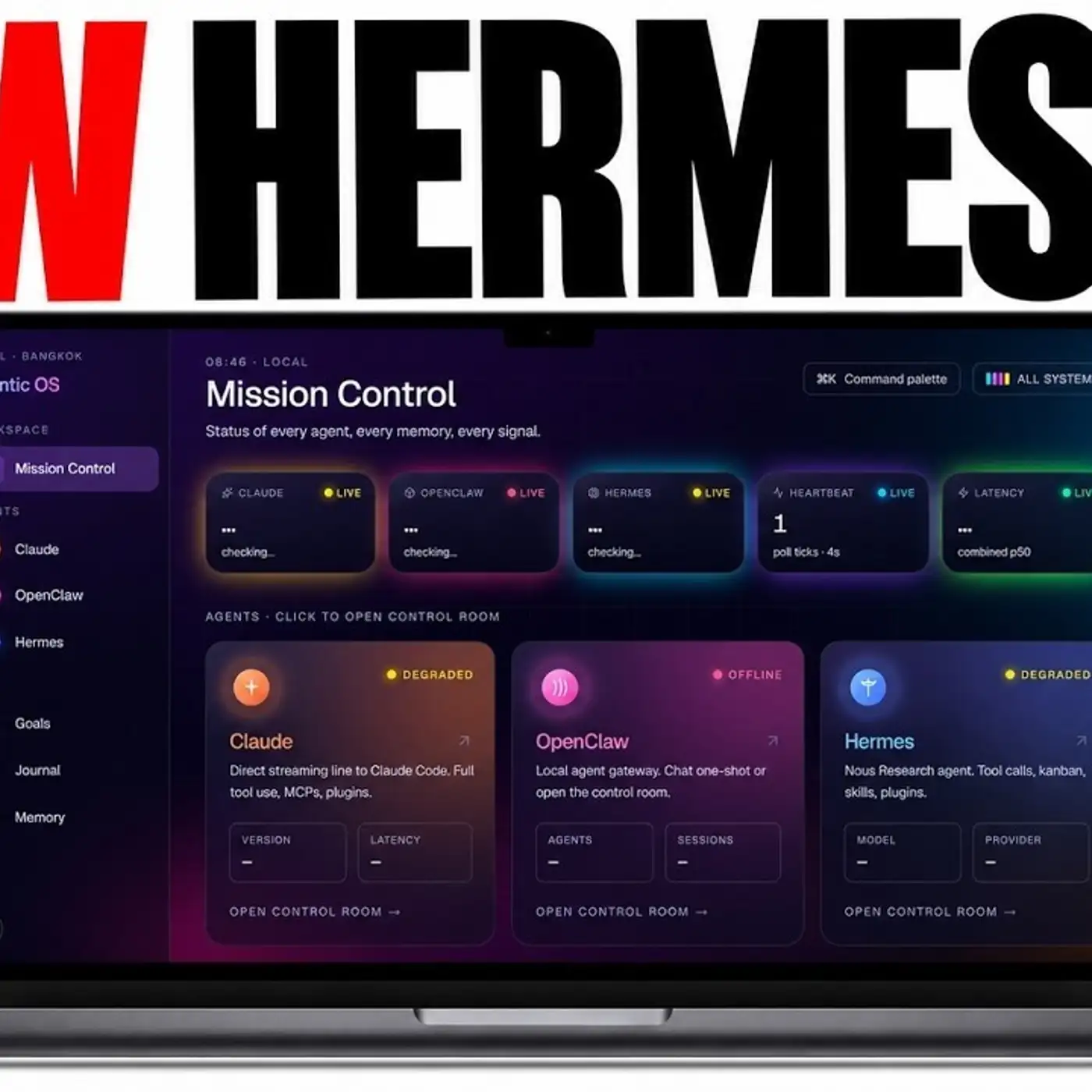
Try to set up multiple agents, but the model is only the default one. I'm not able to add more. So let's have a look at this. This is Hermes Workspace, which is a really good UI for Hermes Agent.
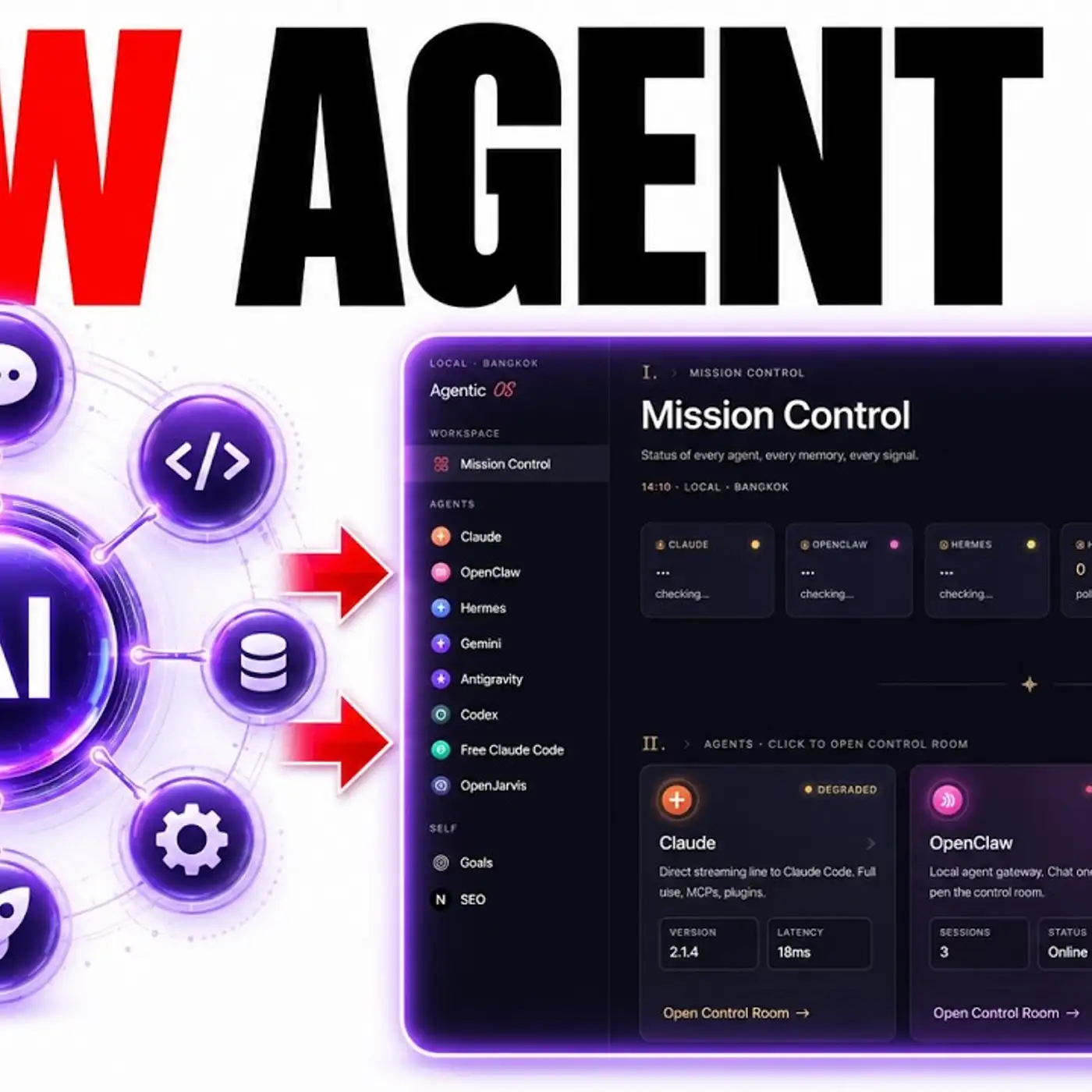
Sometimes it does have a few problems, particularly with syncing directly to Hermes. I've found the same. Actually, one of the reasons I created the Agent Operating System is that it's just so that I can sync things quicker and easier. So how do you get started with this?
How do you install this, etc.? So you can copy this command. We can go over to our terminal, like so. And then we can run this command like this, right?
So we paste this command in, and then we can just start installing Hermes Workspace, like you can see. That's going to take a few minutes to install. And then in the meantime, I want to show you how you can add multiple different logins and models to your AI Agent. So what you can do over here is you can run the command Hermes Model, right?
And then you can add multiple models. Now, for example, I could add NewsPortal, which I've already done. But I could also add X, right? And Grok as a backup and as an alternative.
Maybe I could use X for generating images and videos. So if we click on that, like so, this is going to ask us to sign in here. I'm just going to sign in. Then we can authorize this.
By the way, if you didn't know, you could do this. Basically, you can use your subscription that you've probably already got for Twitter and then plug that into Hermes. So if we go back to Hermes now, we can select the model. I'm just going to go with Grok 4.3.
And that's all synced up and ready to go. Perfect. From here, what we're going to do is we're going to go back into terminal here. And then we're going to check Hermes Workspace.
So that should all be set up. So the first thing we need to do is just run Hermes Gateway Run. Let's do that over here. There we go.
And then now we're going to start the Workspace UI. All right, so we've got Hermes Gateway starting there. And I'm going to run Hermes Gateway UI, like you can see. And then from here, we should be able to get this running.
Now, one thing to note is if you've already got something set up on the local host. So this is going to run at localhost 3000. There, if we've already got something running on that host, you need to change the way that it's set up, which I'll show you in a second. Basically, when I'm fixing an issue like that, what I'll do is I'll actually just plug in the documentation of the GitHub and the Workspace and everything else into Claude.
And then Claude can fix it locally for me. Pretty good if you're not a coder. Saves a lot of time. So, and again, this is one of the reasons I don't really use Hermes Workspace anymore is it can be a little bit buggy.
I mean, again, if you look inside the Workspace here, you can see all these errors here. And also Hermes Gateway is starting, but it's not loaded properly yet. But it's okay because we can start getting Claude to run it all for us, right? Sometimes as well, Claude will give you the instructions here on what to implement.
But it's like, why would I do that when I can just get Claude to run my terminal instead? So you can always just say like, do this for me, and it will just go off and start setting up for you. And also, I hope you understand that I'm being very transparent with you in terms of how this is set up. Sometimes it's easy to make it look like the setup is easy, but as you can see right here, it didn't work perfectly, right?
Like there was a lot of messing around right here. And you can see, for example, even here, like it's being slow to load. And we actually have to sync the backend of Hermes as well, so it can work. So you can see I actually ran those commands inside Terminal just a second ago, but it didn't work again.
So again, we're going to get Claude to help us fix this. Now, one thing that I'd recommend to you as well is that when you're setting up, if you're using Claude Desktop like me or Claude Code, then you just want to make sure you have bypass permissions on. I just have that to make it faster and smoother. Otherwise, you're going to have to create a bunch of backend stuff, like you see right here, that you might not be technical enough for if you don't code.
And also, it's going to be a lot of back and forth with you and Claude if you don't allow that setting on. So once you've done that, now we're back into Hermes workspace, and you can actually see it's got the UI here, which is perfect. And then if we go into the settings, let's have a look over here. Model and provider settings here.
And then you can see we've hit another error here. So just something to bear in mind is like, this will take a bit of back and forth to get it all synced up. Even though it's like a one-click install for the command, it takes a lot of back and forth to have like the API keys and everything else running on the backend. And then you see here, it's fixing it over here.
So if we refresh this, let's just see if it's working like so. In the meantime, if you want something that's a bit faster and easier to sync, let me show you an example. We can have Hermes agent running in the background, right? And whatever I plug into this model, I can manage it inside my control room, which I find a lot easier and simpler to manage.
So that's what I recommend. Now, if we go to settings and model, let's just check. Now we've got the model synced, as you can see. And then over here, we can start switching between models, right?
And so what you would do here is you would click on add for each of the models you want to change, right? Now, if you, for example, have news portal, you can also plug that in. So you can log that in and start the OAuth flow. It also has OpenAI Codecs, Atomic Chat, which is a local operator for AI models.
You can run that with OpenCore too. And then you've got Alarmer. So that's how you can switch the models inside your workspace. Hope that helps you.
And then also down here, you can add more API keys, right? So you can change what you want, including the custom API keys too. So that's basically how you can switch in between. So if you have models that are set up inside Hermes, but they're not synced inside the settings of your Hermes workspace, this is how you can switch them around and that sort of thing.
And again, you may need Chord to sync that for you with the backend, because you had to create like a sort of gateway for the API and the dashboard and the workspace UI. And you can see here that's running on three multiple local ports, right? It's not just like you install Hermes workspace and it's good to go. It is a pretty powerful model though.
Once you've got it set up like so, you can switch between the chat, between the files. You've got the terminal, you've got conductor, AI agent swarms. One thing that's pretty cool about this is the office section here. And then you got agent swarms as well, which is pretty cool.
So there's all sorts of interesting stuff you can do with this. Again, if you want something simpler and easier to manage, you can check out the agent OS system. And you can see, for example, if we set up Grok or switch between models, we've got them right here, right? And then you can see what's happening with your open Chord, with your Chord, all the other stuff that you've built.
And inside the agent operating system as well, you can chat with different models. It's not just limited to Hermes workspace. Again, Hermes workspaces, the creator, Eric is number one, a fantastic guy. And number two, he's created something special there.
So it's not like you have to pick one or the other, but this is just my system and what I find easy. I also like, for example, the custom workflows that have SEO, videos, image generation inside the studio, et cetera. The Kanban board is all ready to go. Whereas for example, if you go inside here, there's no specialized workflows for different stuff.
You just kind of got like the chat and the basics right here. So for me personally, obviously I prefer the agent operating system, but you can switch between whichever one you want. And again, like the Hermes workspace, it is a bit difficult to sync the models and add models on the backend. So for example, if you remember before, when I actually went into Hermes workspace, couldn't pick Grok OAuth, right?
So I could add APIs. I could have different OAuths for Olama and stuff like that, but I couldn't add Grok OAuth. So there's some things that probably haven't been updated because Hermes is moving so fast. Whereas for example, with the agent OS, we actually run and add daily updates inside the classroom for the agent OS and the new zip file that comes out each day.
So hope that helps. Great question right here. That's how to set up multiple models and also multiple agents. And again, like if you want to have multiple agents inside Hermes workspace, you can go inside the operations and the swarm section as well and then add different profiles.
And if you're watching this and you want me to answer your questions in a video tutorial like this, feel free to post inside the AI Profit Boredom community. And if you want the agent operating system that we've created, along with, we've actually got a lot of different tutorials on Hermes workspace too, and lots of training on Hermes agent in general. You can get that inside the AI Profit Boredom. So we add new daily updates as you can see right here.
You can get the zip file for the agent OS system and also a video tutorial on how to set up. And that's all inside here where you also get four weekly coaching calls. You can direct message me. You can ask questions inside the community.
We come back to you with video tutorials and we've got a map to where you can connect with people in your local city. Thanks for watching. See you on the next one. Cheers.
Bye-bye.
More episodes